Project #7: Creating an Image Mosaic
In this DISCOVERY Data Science Project, you will do real data science in less than an hour and you will earn this project's card to your collection when you fully complete this project! 🎉
Project Overview
A Data Science DISCOVERY alum had their puppy, Rosie, featured on the official University of Illinois Instagram, and we wondered: What if we could make an image of Rosie entirely from images posted to the Illinois Instagram?
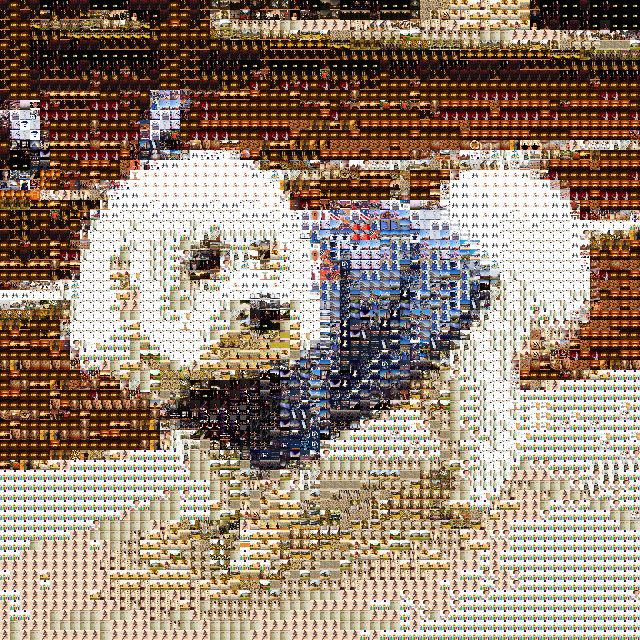
By dividing the image into a square grid and replacing each region with a matching Illinois image, we created an image mosaic of Rosie:
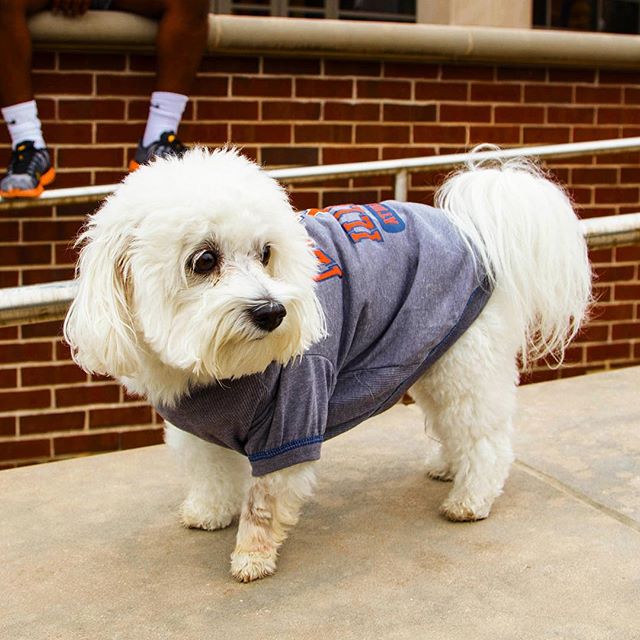 →
→ 
The following images zoom into the mosaic to show how the individual tiles form the finished picture:
| 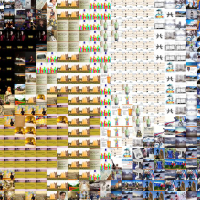 | 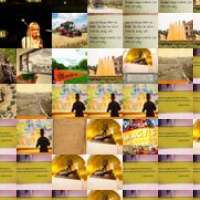 | 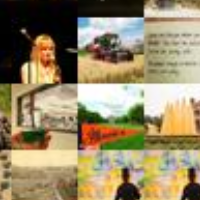 |
| The "Rosie Mosaic", made entirely of images from @illinois1867 | 5x Zoom (the top-left of the zoomed region is Rosie's nose) | 25x Zoom | 50x Zoom |
Mosaic Terminology
The base image is the image that your mosaic will recreate. You will choose one from the provided Illinois image collection.
The tile images are the images used to build the mosaic. This project uses the same collection of 300 provided Illinois images as tiles.
- Before you begin, make sure to preview the 300 tile images so you can know what we're working with! :)
Let's get started and create your own mosaic! 🎉
Section 1: Loading the DISCOVERY Library
To access an image as a DataFrame, we have provided the DISCOVERY library to help process the image into a DataFrame. The library is available to be imported using import DISCOVERY.
Specifically, the function we provided is DISCOVERY.loadImageAsDataFrame("sample.png"), which loads an image and returns the image's pixel data as a DataFrame.
To use this function:
- First, import DISCOVERY by using
import DISCOVERY(all caps, because DISCOVERY!) - Then,
image = DISCOVERY.loadImageAsDataFrame("sample.png")to load thesample.pngimage into a DataFrame namedimage - Finally, type
imageas the last line in the cell to display the contents of the DataFrame you just created
Try that out in the cell below:
The Sample Image
You just loaded a sample image -- it is tiny, just 3 pixels by 3 pixels -- and almost invisible. Below is the a giant version of the nine pixels you just loaded by loading sample.png:
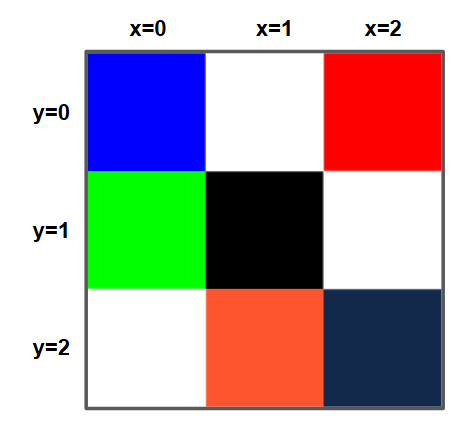
Compare the DataFrame you created in Python with the image above. There are a few key observations:
- Each row of the DataFrame contains a position (
xandy) and a color (composed of a redr, greeng, and bluebcomponent). - The first row of the DataFrame (index
[0]) contains information about the pixel located atx=0,y=0. The color of the pixel isr=0(no red),g=0(no green), andb=255(the maximum value of blue). This tells us that the top-left pixel is a bright blue color. - The next row of the DataFrame (index
[1]) has theyvalue of 1, giving us information about the pixel located at (x=0,y=1). Visually it is a bright green pixel, and the DataFrame shows a color value ofrgb(0, 255, 0). - ...this goes on for all nine pixels...
Finding a Single Pixel
The code you used to load the image stored the image as a DataFrame. Using the DataFrame image, write the code to select the single row from the DataFrame that has information about the GREEN 🟩 pixel (second row, first column) and store that in the variable green_pixel:
⚙️ Test Case: Section 1: Loading the DISCOVERY Library
Section 2: Accessing Color Data
Every color visible on a computer screen is made up of the three primary colors of light -- red, green, and blue. Your monitor displays color by varying the intensity of the red light, green light, and blue light emitted for every pixel on your screen. Since images are primary displayed on computer screens, the default "color space" is to represent colors as red, green, and blue.
When you have a pixel, you will always see the three components. For example, the contents of green_pixel is [0, 255, 0]:
- The first
0means we have 0 / 255 (0%) red light - The second
255means we have 255 / 255 (100%) green light - The final
0means we have 0 / 255 (0%) blue light
Section 2.1: Accessing Illini Orange
Using the image you loaded in Section 1, create a DataFrame that contains ONLY the three pixels on the top row of the DataFrame. Store that subset of the DataFrame in the variable image_topRowSubset:
The top row should contain only three pixels. Check your DataFrame to make sure that you have only:
- A blue pixel, where
b = 255and bothr = 0andg = 0. - A red pixel, where
r = 255and bothg = 0andb = 0. - A white pixel, where
r,g, andbare all255.
Once we have a subset, we can use our DataFrame operations on our subset. For example, let's look at the median value for each color.
- The red components of the three pixels is
[0, 255, 255]. This means the median red value should be255. - However, the green components of the three pixels is
[0, 0, 255]. This means the median red value should be0.
Calculate the median r, g, and b values of the image_topRowSubset image below:
(Hint: You can find the median of a DataFrame column with the .median() function on the DataFrame's column data.)
⚙️ Test Case: Section 2: Accessing Color Data
Section 3: Finding the Average Color of the Sample Image
Now, find the average color (not the median anymore!) of the entire image by finding r_avg, g_avg, and b_avg:
Section 4: Find the Average Color of ANY Image
Building off Section 3, we now want to find the average color of ANY image. To do that, we need to create a function that is given a DataFrame image and returns the average color of that image.
Write this in the function findAverageColor below. You must return the average color as a dictionary with the values:
r_avg, for the average red color,g_avg, for the average green color,b_avg, for the average blue color
A dictionary is a data structure that stores multiple values. You have used a dictionary in "Step 4" of your simulation code, where you use d to accumulate all real-world values. Accumulate the values r_avg, g_avg, and b_avg just like you would in the simulation:
def findAverageImageColor(image):
  ...

  # Return a dictionary of average color:
  d = {"r_avg" : r_avg, "g_avg": g_avg, "b_avg": b_avg}
  return d
Write the entire findAverageImageColor function to find the average color of the image passed into the function:
Loading and Testing with the Rosie Image

So far, you have been working with a tiny (9 pixel) image. Let's start working with a much larger image!
Using the DISCOVERY.loadImageAsDataFrame(...) function again, load the file named rosie.jpg into a Python variable named rosie. This file contains the image of Rosie you saw at the beginning of the lab (and displayed again here).
Find the Average Color of the Rosie Image
Run the following cell to find the average color or the Rosie Image you just loaded:
⚙️ Test Case: Section 4: Find the Average Color of ANY Image
Section 5: Dividing Your Base Image Into Small Grid Tiles
To create a mosaic from an image, we must split the base image into small regions to be replaced with the tile images. To accomplish this, we need a function that will find the subset of pixels found in a region of an image.
- Thinking about Section 2, you found the subset of the image that included all pixels in the top row.
- Other subsets of the sample
sample.png3x3 pixel image might be a 2x2 square of pixels, or a 1x3 rectangle, or any number of other subsets.
Since we might need any rectangular region of an image, lets create a function that returns a rectangular region on an input image that starts at (x0, y0) and spans width pixels wide and height pixels tall.
Your findImageSubset function
Specifically, create a function findImageSubset that finds the subset of the image starting at (x0, y0), spanning width pixels wide and height pixels tall. Your function must return the subset of all the pixels in that region of the image.
Example:
findImageSubset(rosie, x0=0, y0=0, width=3, height=3)-- returns subset of all the pixels in the square defined by: x=0...2 and y=0...2 (9 total pixels)Example:
findImageSubset(rosie, x0=5, y0=5, width=5, height=5)-- returns subset of all the pixels in the square defined by: x=5...9 and y=5...9 (25 total pixels)Example:
findImageSubset(rosie, x0=5, y0=0, width=5, height=5)-- returns subset of all the pixels in the square defined by: x=5...9 and y=0...4 (25 total pixels)Example:
findImageSubset(rosie, x0=15, y0=0, width=20, height=10)-- returns subset of all the pixels in the square defined by: x=15...34 and y=0...9 (200 total pixels)
⚙️ Test Case: Section 5: Dividing Your Base Image Into Small Grid Tiles
Section 6: Finding the Average Color of a Subset
You have created two functions:
- A function that finds the average color of a DataFrame of pixels (
findAverageImageColor), AND - A function that finds a subset of pixels of an image (
findImageSubset)
Create a new function, findAverageImageSubsetColor that combines both of them and returns the average color of a subset of the image:
⚙️ Test Case: Section 6: Finding the Average Color of a Subset
Section 7: Finding the Average Color of Your Tile Images
To create an image mosaic, we need to find the average pixel color of every one of our tile images so that you can find the best tile image to use when you're creating your mosaic. The code below is already complete and does the following:
- Goes through each image file in your
pathdirectory, - Finds the average pixel color of each image using your
findAverageColorfunction from Section 4, - Finally, creates a new DataFrame
df_tileswith the average color of each image and returns that DataFrame.
Make sure to run this code -- we'll use it in the very next section!
Understanding the Output
Here's the DataFrame output that the function creates for some sample images. The DataFrame has four columns:
fileName, containing the name of the tile imager,g, andb, containing the average color for the image
We will use this on your tile images directory when we put this all together to make your mosaic, but since that will contain hundreds of images we're going to start with just two sample images:
Section 8: Finding the Best Match
There's just one last function to create before we can start making mosaics! This function needs to find the best tile for a given average color.
To do this, your function will use two pieces of data:
- Your function will use the DataFrame that contains all of the tile images. This will be the DataFrame from Section 7,
df_tiles, and contains the tile image filename and each tile'sr,g, andbaverage pixel colors. - Your function will be called with the average color of the current region of your base image that you're searching for a tile image to replace. The color of the base image is passed into your function as
r_avg,g_avg, andb_avg.
Using this DataFrame of all tile images and the (r_avg, g_avg, and b_avg) form the base image, create the findBestTile that must find the best tile image from df_tiles for a given average color. You should do this by finding the single row in df_tiles that has the smallest distance from the average color.
Example
Imagine you just have three tiles, so your df_tiles DataFrame is:
| fileName | r | g | b |
|---|---|---|---|
| ./red.jpg | 255 | 0 | 0 |
| ./green.jpg | 0 | 255 | 0 |
| ./blue.jpg | 0 | 0 | 255 |
If your image subset has r_avg = 10, g_avg = 200, and b_avg = 20, we can use the distance formula (Pythagorean's Theorem) to find how "far away" the average color is from each of the tile images:
- For the red tile (255, 0, 0), the distance away is $d = \sqrt{(255 - 10)^2 + (0 - 200)^2 + (0 - 20)^2} = 316.8990375$
- For the green tile (0, 255, 0), the distance away is $d = \sqrt{(0 - 10)^2 + (255 - 200)^2 + (0 - 20)^2} = 59.37171044$
- For the blue tile (0, 0, 255), the distance away is $d = \sqrt{(0 - 10)^2 + (0 - 200)^2 + (255 - 20)^2} = 308.7474696$
We find that the green tile is the closest since it has the minimum distance. The green tile should be returned.
Hints
- It will be VERY helpful to add an extra column to your DataFrame -- like
df["distance"] = .... - Once you have the distance calculated, how do you return just the smallest row?
⚙️ Test Case: Section 8: Finding the Best Match
Section 9: Selecting Your Base Image
The base image is the picture your mosaic will recreate. In your first mosaic, you should use "rosie.jpg" but you will be able to use your image later!
⚙️ Test Case: Section 9: Selecting Your Base Image
Section 10: Loading the Tile Images
This project includes 300 University of Illinois images in the tiles folder. They are already available to Python in your browser, so there is nothing to upload.
Run the cell below to select that folder and verify the collection:
⚙️ Test Case: Section 10: Loading the Tile Images
Section 11: Create Your Mosaic!
Two settings control the finished mosaic:
maximumTilesXcontrols how many tiles can appear across the image. More tiles add detail but take longer to process.tileHeightcontrols the size of each displayed tile. Larger tiles make a larger final image.
We have provided reasonable defaults for the Rosie image:
maximumTilesX = 40will use 40 tiles across (translating 5×5 regions of the base image into mosaic tiles)tileHeight = 10will make each tile 10 pixels tall (translating each of those 5×5 regions into a 10×10 tile)
We recommend running the mosaic first with these default values and then changing them later.
Section 11.1: Find the Average Color of Every Tile
This code uses your function from Section 7 to create df_tiles, a DataFrame of every tile image. We have supplied you with 300 tile images so we can get straight to making the mosaic.
⚠️⚠️ This takes longer than the earlier cells because Python must inspect all 300 images -- up to one minute or more to run! ⚠️⚠️
Section 11.2: Load Your Base Image
Section 11.3: Build and Display the Mosaic
Run the code below to divide your base image into regions, find the closest matching tile for each region, and display the completed mosaic.
⚠️⚠️ This takes longer than the earlier cells because it generates the mosaic -- up to one minute or more to run! ⚠️⚠️
⚙️ Test Case: Section 11: Create Your Mosaic
Section 12: Experiment and Save
Try a different base image from the images provided or adjust maximumTilesX and tileHeight, then rerun Sections 11.2 and 11.3.
- To save your mosaic, right-click the rendered image and choose Save Image As.
- On a touch screen, press and hold the image.
Validation Will Be Slow!
⚠️⚠️ The validation runs you entire project, so it will take the total time of all your cells to run! This may take several minutes to complete! ⚠️⚠️
Validate and Complete This Project!
Congratulations on finishing this DISCOVERY Data Science Project! 🎉🎉
To validate your entire project, your entire code will run from top-to-bottom on this page and each test case will be validated one final time. If everything looks good, you'll earn the card for completing this project: